The Complete Guide to Setting Up Kimi K3 Proxy on Janitor AI via MegaNova
If you're an AI roleplay enthusiast using Janitor AI, you know that the quality of your roleplay sessions hinges almost entirely on the underlying language model. While default options are good, connecting Janitor AI to Moonshot AI’s flagship Kimi K3 via MegaNova unlocks a whole new tier of narrative depth.
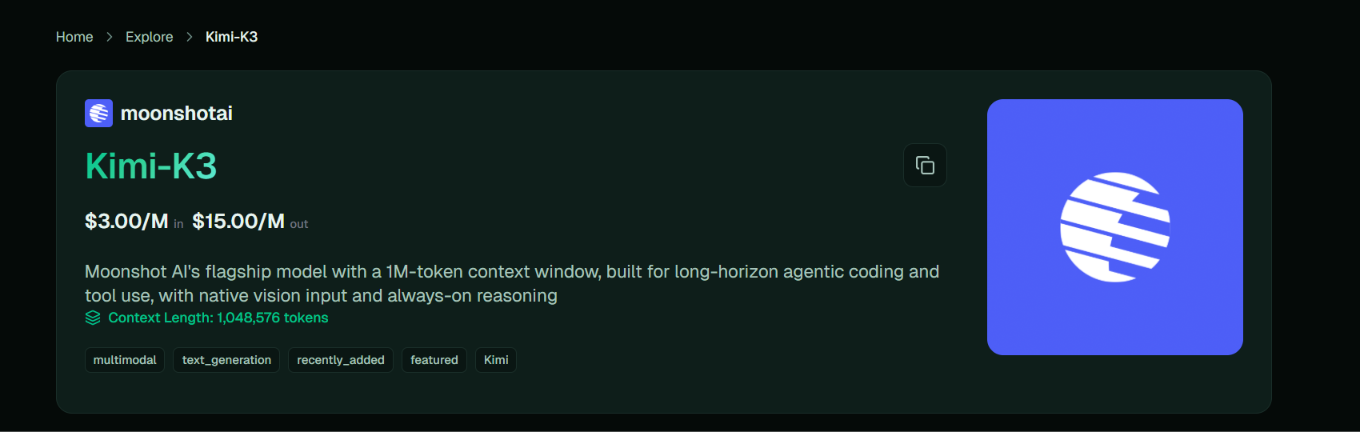
Kimi K3 brings a vast 1,000,000-token context window and exceptional long-range memory retention to your roleplay chats. This means characters won't forget story elements from 50 messages ago, complex lore stays intact, and dynamic dialogue remains sharp throughout long multi-chapter sagas.
Here is your complete guide to obtaining your MegaNova credentials and configuring the Kimi K3 proxy in Janitor AI.
What Makes Kimi K3 Special for Roleplay?
- Enormous Memory Capacity: With its 1M token context window, Kimi K3 easily tracks extended scenarios, side characters, and worldbuilding without losing context.
- High Narrative Nuance: Kimi K3 excels at deep reasoning, emotional intelligence, and natural conversational flow.
- MegaNova Integration: Using MegaNova as your proxy router allows you to bypass standard rate limits, stream fast responses, and connect directly using an OpenAI-compatible format.
Step 1: Obtain Your MegaNova API Credentials
Before configuring Janitor AI, you need your API credentials from MegaNova.
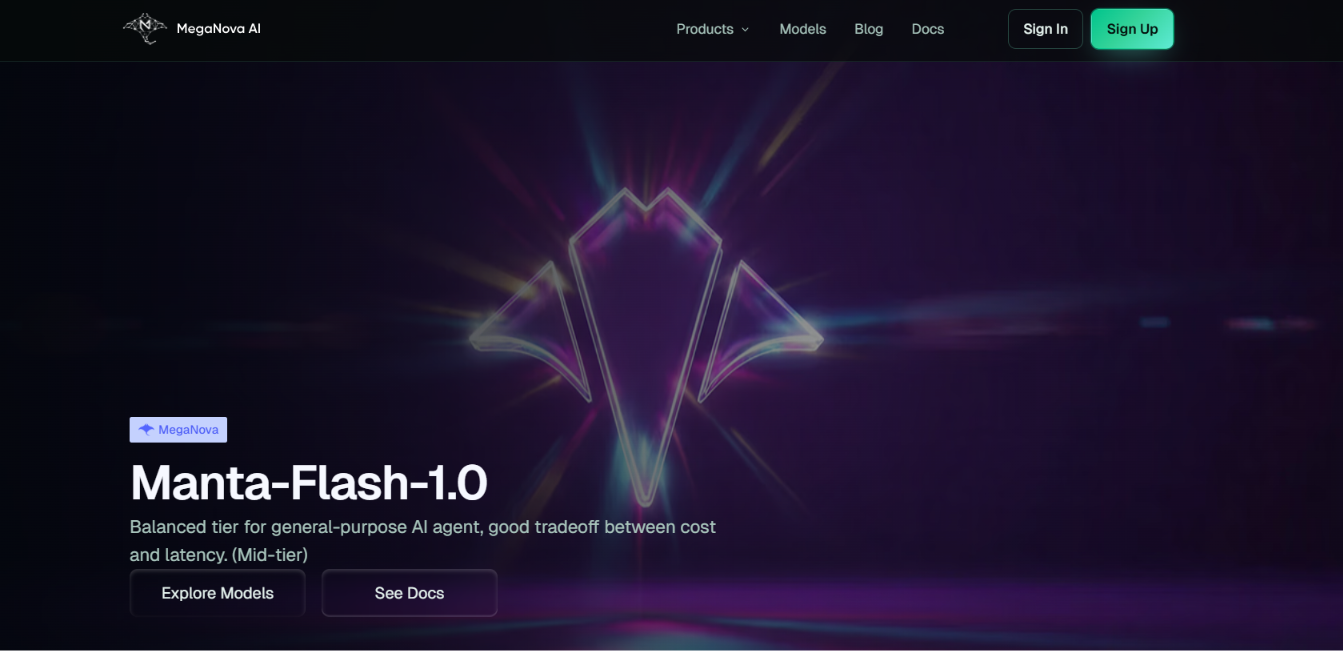
- Sign in to MegaNova:
Go to the MegaNova AI Console and log into your account. Ensure your account has active credits or free access enabled.
- Generate a Secret API Key:
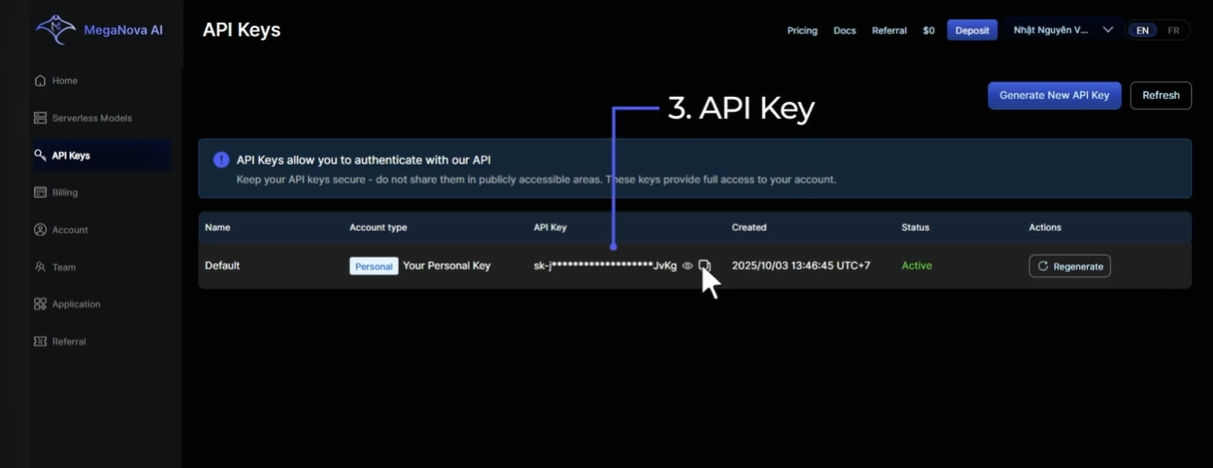
Navigate to the API Keys section in your dashboard.
Click Create New Key, copy the secret key starting with sk-, and save it in a safe place.
- Copy the Proxy Endpoint:
Copy the official OpenAI-compatible endpoint URL provided in your MegaNova settings:
Plaintext
https://inference.meganova.ai/v1/chat/completions
Step 2: Configure Kimi K3 Proxy in Janitor AI
Now that you have your credentials, setting up the custom proxy inside Janitor AI takes only a couple of minutes.
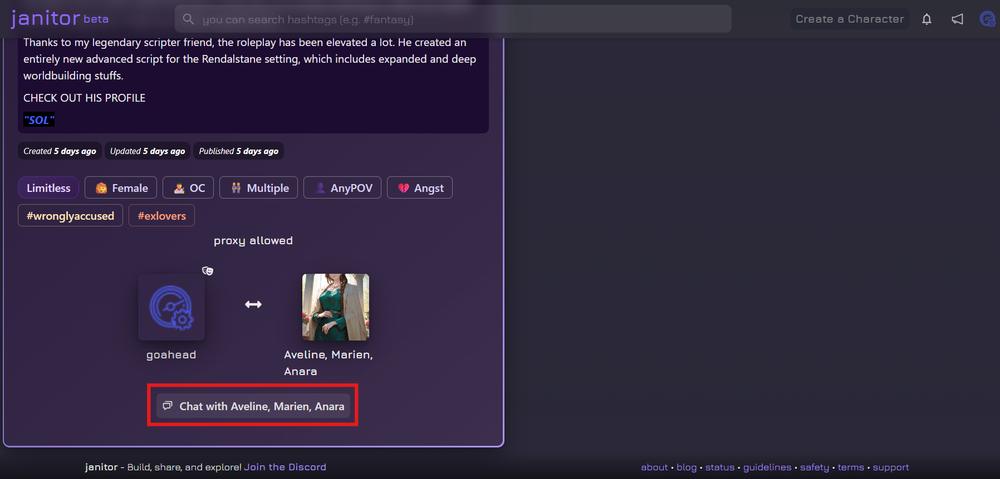
- Open Janitor AI and open a chat session with any character.
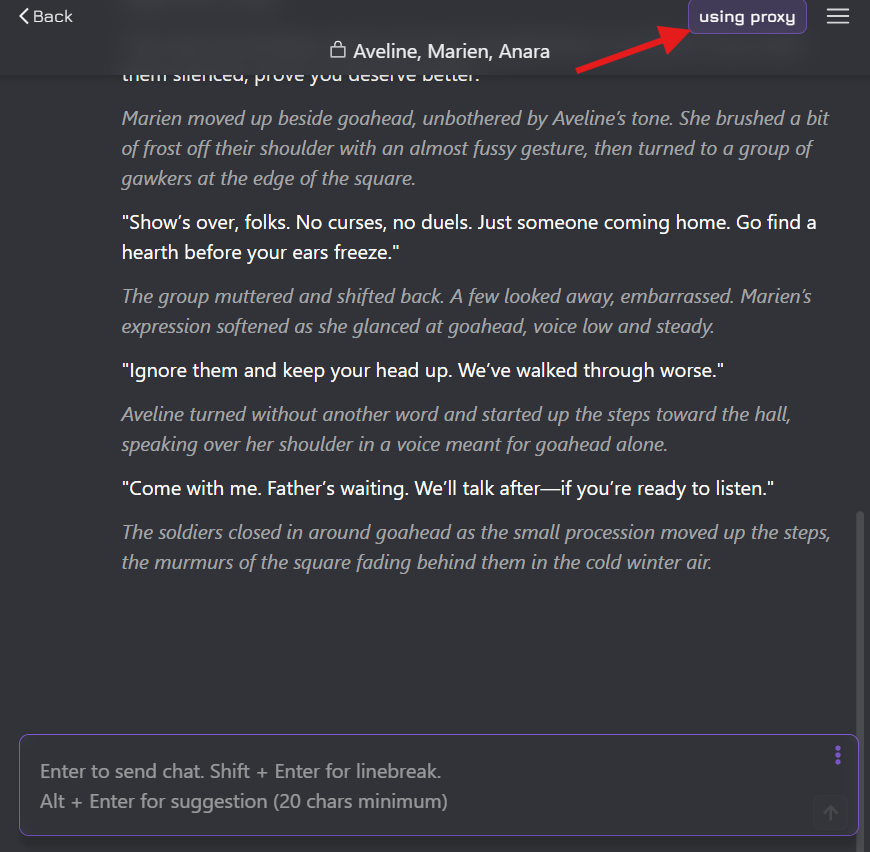
- Click the top-right menu icon (☰) and select API Settings.
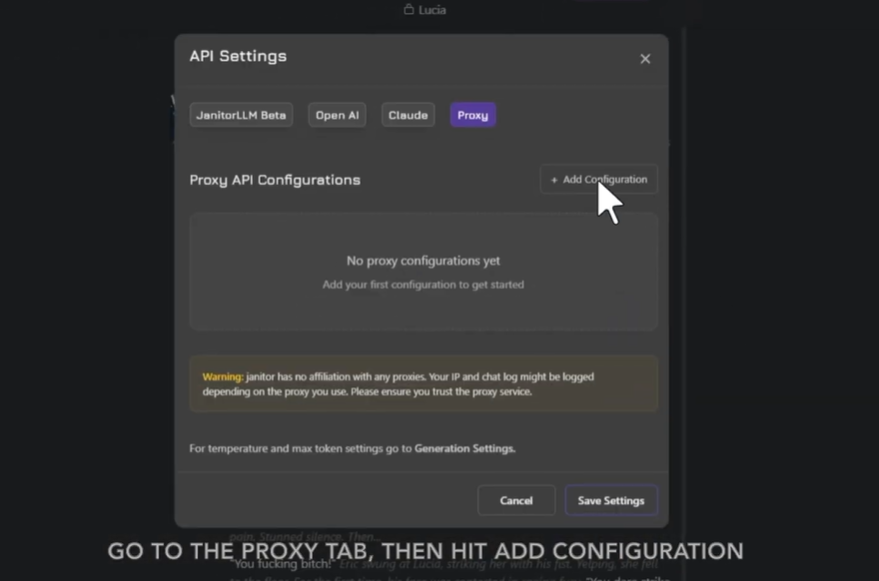
- Navigate to the Proxy tab and click + Add Configuration.
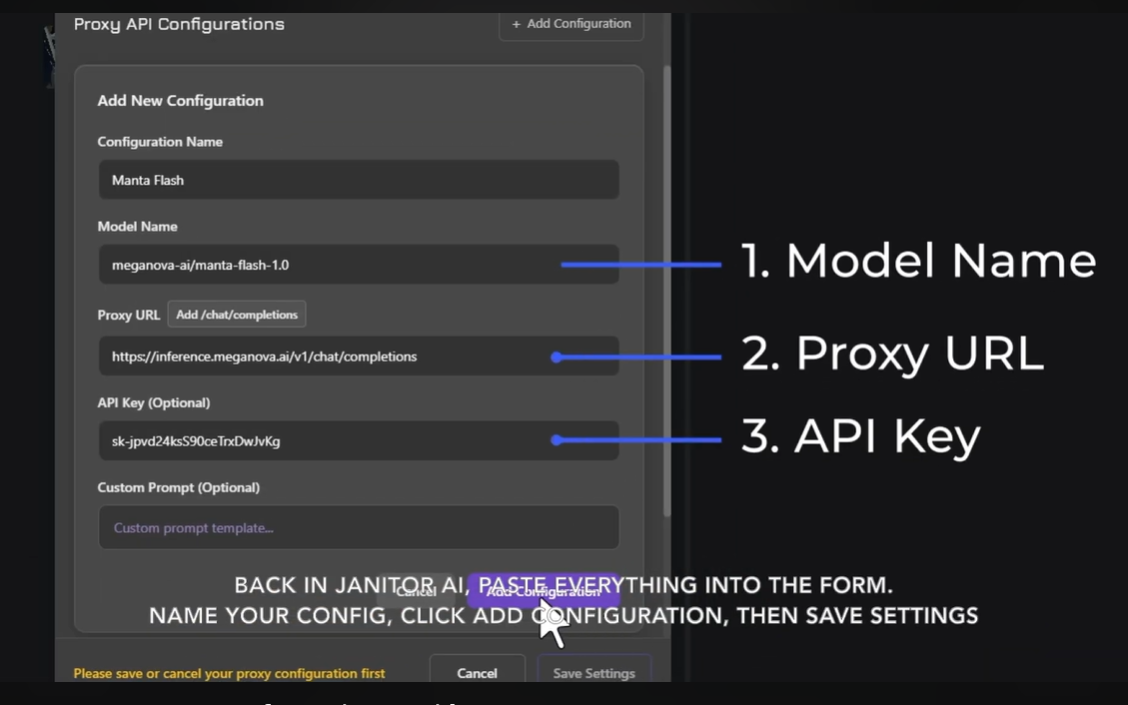
- Fill out the fields with the following details:
- Click Test Configuration. If you see a green success message, click Save Settings.
Recommended Generation Parameters for Kimi K3
To ensure Kimi K3 produces immersive responses without repetition or odd formatting, tune these settings in Janitor AI's Generation Settings:
- Temperature (0.75 – 0.85): Striking the right balance between creativity and narrative coherence.
- Max Output Tokens (400 – 800): Gives the model enough room to output 2 to 4 detailed paragraphs per turn.
- Max Context Window (16,000+ tokens): Because Kimi K3 handles vast context with ease, you can scale this up significantly compared to smaller models.
- Presence & Frequency Penalty (0.1 – 0.2): Helps prevent repetitive dialogue loops during extended chats.
Troubleshooting Checklist
- Connection Errors (401 Unauthorized): Verify that your MegaNova API key was pasted correctly without accidental spaces.
- Blank Replies (404 or Empty Output): Check the Model Name field. Ensure it matches the exact identifier string listed in your MegaNova model list (moonshot-ai/kimi-k3).
- Cut-Off Responses: If messages stop abruptly, increase your Max Output Tokens slider under Janitor AI chat settings.
Sign Up on MegaNova and Explore Kimi-K3 Today.
What’s Next?
Sign up and explore now.
🔍 Learn more: Visit our blog and documents for more insights or schedule a demo to optimize your roleplay experience.
📬 Get in touch: Join our Discord community for help or Contact Us.
Stay Connected
💻 Website: meganova.ai
📖 Docs: docs.meganova.ai
🎮 Discord: Join our Discord
👽 Reddit: r/MegaNovaAI
𝕏 X: @meganovaai