Text-to-Video vs. Image-to-Video in MegaNova: Which to Use When

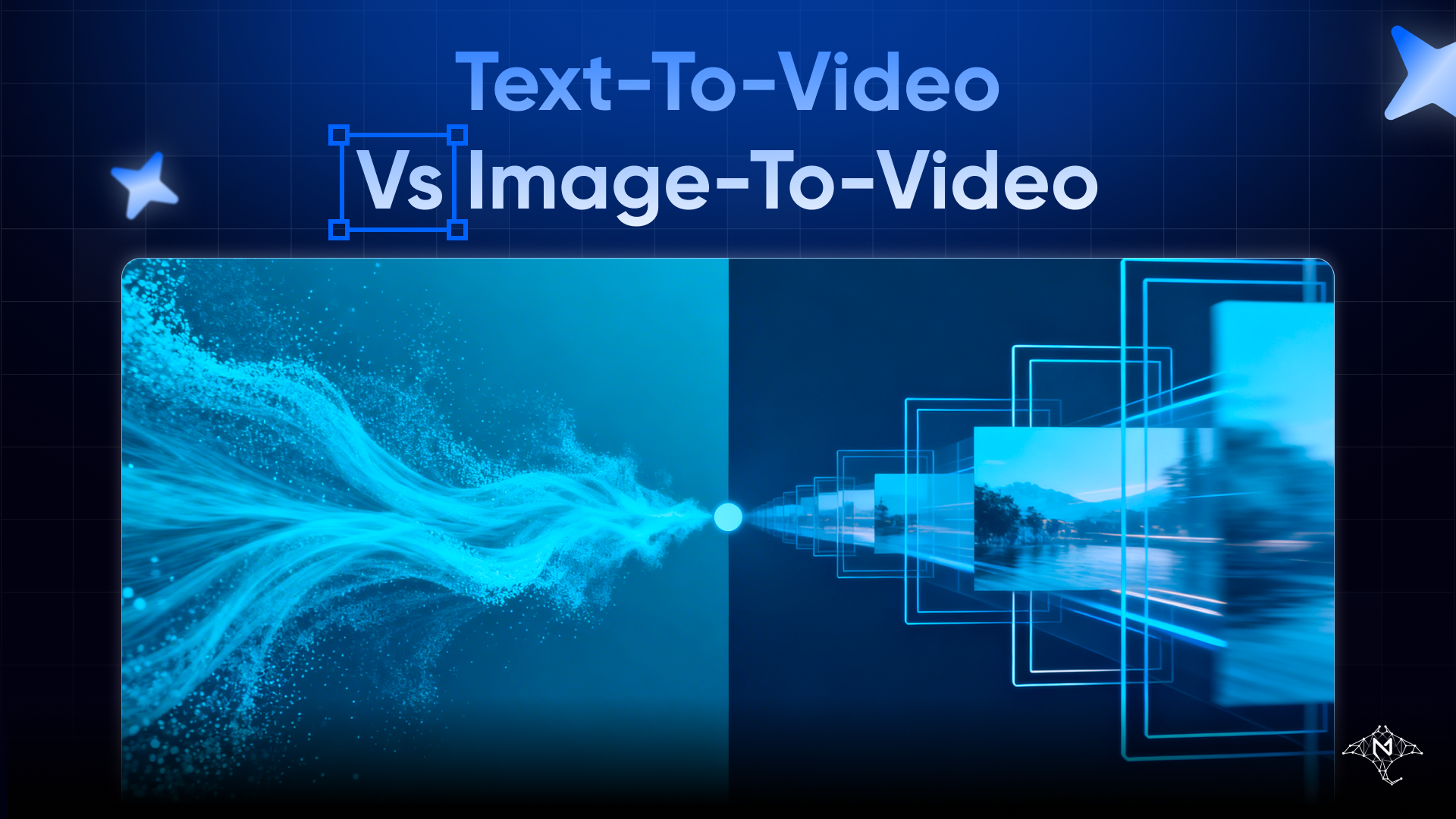
MegaNova Studio supports two fundamentally different approaches to AI video generation — and picking the wrong one for your use case doesn't just waste credits, it produces a result that misses the point entirely.
This guide breaks down exactly how T2V and I2V work, where each one excels, and the decision framework for choosing between them.
The Core Difference
Text-to-Video (T2V) starts from nothing but words. You describe a scene, a mood, an action — the model imagines and renders everything from scratch. Every pixel is synthesized based on your prompt alone.
Image-to-Video (I2V) starts from a specific image. The model uses that image as a visual anchor and generates motion around it — animating what's already there, extending it into time. The identity of the subject, the lighting, the composition, the color palette — all of it is constrained by the reference image you provide.
Same prompt. Completely different starting points. Completely different outputs.
What's Available in MegaNova Studio
MegaNova gives you nine models across both modes:
Text-to-Video
| Model | Tier | Max Duration |
|---|---|---|
| Wan 2.6 T2V | Lite | 15 seconds |
| Veo 3.1 Fast | Lite | 8 seconds |
| Veo 3.1 | Pro | 8 seconds |
| Seedance Lite | Lite | 10 seconds |
| Seedance Pro | Pro | 10 seconds |
Image-to-Video
| Model | Tier | Max Duration |
|---|---|---|
| Wan 2.6 I2V | Lite | 15 seconds |
| Veo 3.1 Fast I2V | Lite | 8 seconds |
| Veo 3.1 I2V | Pro | 8 seconds |
| Seedance Lite I2V | Lite | 10 seconds |
In the Character Studio's Video tab, switching between T2V and I2V modes is automatic — select a model with I2V in the name and the image reference picker appears. Switch to a T2V model and it disappears. The prompt controls, resolution, and duration settings stay the same either way.
When to Use Text-to-Video
T2V is the right choice when you're working with ideas that don't yet have a visual form, or when you want the model's full creative latitude to interpret a concept.
You're building a world, not a character.
T2V excels at establishing shots, environmental scenes, and abstract sequences. "A neon-soaked alley in perpetual rain, steam rising from grates, shadows moving between buildings" — this is pure T2V territory. There's no character to preserve, no face to keep consistent, no reference to constrain. You want the model to invent.
You need a cinematic backdrop or intro sequence.
Character profiles, landing pages, and promotional videos often need an atmospheric intro before the character appears. T2V gives you that establishing visual without locking you to a specific image. Write the scene, let the model build it.
You're testing prompt language before committing to I2V.
Because T2V has no image processing overhead, it's a cost-effective way to test whether a prompt generates the mood you want before running the same prompt with a reference image. Get the composition and atmosphere right in T2V first, then switch to I2V to bring your character in.
The subject doesn't have a fixed visual identity.
If you're generating content for a concept, a brand element, or an abstract scene — not a specific character with a specific face — T2V is the natural fit. When there's nothing to preserve visually, a reference image only constrains what the model can create.
T2V prompt structure that works well:
A [setting] where [subject] is [action]. [Lighting/atmosphere]. [Camera motion].
Cinematic quality, [style keywords].
Example:
A crumbling cathedral at sunset, golden light piercing stained glass windows,
dust particles floating in the air. Slow pan from floor to ceiling.
Cinematic, atmospheric, dramatic.
When to Use Image-to-Video
I2V is the right choice when you have a specific visual that must remain recognizable — a character, a product, a face, a design — and you want to add motion to it without changing what it looks like.
Your character has a designed visual identity.
This is the primary use case in MegaNova's character workflow. You've spent time on your character's avatar — the hair color, the outfit, the expression, the art style. I2V preserves all of that. The generated video will look like your character moving, not the model's interpretation of a textual description.
If you use T2V with a description of your character instead, you'll get something that roughly matches — but it won't be them. Two different generations of the same T2V prompt will produce two different-looking characters. I2V locks in the identity.
You're creating social media content that needs brand consistency.
Profile videos, character intros for Reels or Shorts, animated profile pictures — all require that the subject is immediately recognizable. I2V is the only way to guarantee that. Start from the avatar, add motion, and the result is visually continuous with everything else you've published.
You want controlled, subtle motion.
I2V naturally produces motion that respects the original image's composition — hair movement, subtle facial animation, environmental elements shifting. The model animates what's already there rather than rebuilding the scene. This tends to produce results that feel grounded and believable rather than synthetic.
You're animating multiple variants of the same character.
MegaNova's character assets include emotion variants — different expressions or poses you've created for the same character. I2V lets you animate each variant independently, creating a library of character moments that all look like the same person.
I2V prompt structure that works well:
[Character name]: [key appearance detail]. [Action or motion]. [Setting context].
[Mood/atmosphere]. Gentle animation, [style keywords].
Example:
Aria: silver hair and midnight coat. Turns slowly toward the camera,
a faint smile forming. Rain-soaked rooftop at dusk, city lights below.
Cinematic, moody, elegant.
Note: You don't need to describe the full appearance in an I2V prompt — the image already conveys it. Use the prompt to direct action and mood, not to re-describe what the model can already see.
The Blueprint Sections Factor
In MegaNova's Character Studio Video tab, the auto-prompt system pulls from five blueprint sections: Appearance, Current Scene, Tagline, Personality in Action, and Origin Story.
Here's how to use these differently depending on mode:
For T2V: Enable all sections freely. Since the model is building everything from scratch, the more context it has about the character's appearance, the better it can approximate them. The Appearance section is especially important here.
For I2V: Deprioritize Appearance and focus on Current Scene and Personality in Action. The model can already see what your character looks like — it doesn't need to be told again. What it does need is direction on what the character is doing and feeling. Current Scene provides the where and what; Personality in Action sets the energy and manner.
The Tagline section is useful in either mode — a single phrase that colors the model's interpretation of the entire clip.
Side-by-Side: The Same Character, Both Modes
Say you have a character named Kaelin — a wandering arcanist with white braided hair, a weathered cloak, and glowing runic tattoos.
T2V approach:
- Prompt must describe everything: white braided hair, weathered cloak, runic tattoos that glow, the feeling of ancient magic
- Output: a character that loosely matches the description, but every generation will look slightly different
- Two generations at different times = two different-looking characters
- Better for: establishing the world Kaelin inhabits, atmospheric scenes without Kaelin as the focal subject
I2V approach:
- Reference: Kaelin's avatar image uploaded as the character's main asset
- Prompt focuses on action: "walks through ancient stone ruins, runes pulsing with pale light"
- Output: unmistakably Kaelin — the same face, the same cloak, the same braided hair — now animated
- Two generations from the same image = consistently the same character
- Better for: character reveal videos, social media content, animated profile images
Resolution Choices by Mode
The three resolution options apply equally to both T2V and I2V, but the practical considerations differ:
| Format | Dimensions | Best for |
|---|---|---|
| 16:9 | 1280×720 | T2V establishing shots, cinematic scenes |
| 9:16 | 720×1280 | I2V character animations for Reels, Shorts, TikTok |
| 1:1 | 960×960 | Avatar animations, profile content (works across all platforms) |
Credit Cost Considerations
Credit costs are shown in the model dropdown before you generate — there's no ambiguity before you commit.
For the Wan 2.6 family, I2V and T2V are priced separately (I2V adds image processing to the pipeline). For Veo and Seedance models, the credit cost is the same between T2V and I2V variants at the same tier.
Practical approach: use Lite tier models for iteration — testing prompt language, aspect ratios, and short test clips — and Pro tier models for final outputs. The quality difference is most visible in motion smoothness and detail fidelity on longer clips.
The Decision in One Question
Does a specific image need to remain visually recognizable in the output?
Yes → Image-to-Video
No → Text-to-Video
Everything else — which model, what resolution, how long — comes after that.
For AI character work specifically, the answer is almost always yes. Your character's visual identity is the point. I2V protects it. T2V builds worlds around it.
Try video generation in MegaNova Studio →
MegaNova Studio supports 9 video models across T2V and I2V modes. Available from the Video tab in any character with an image avatar. Credit costs displayed before generation.
Stay Connected
💻 Website: Meganova Studio
🎮 Discord: Join our Discord
👽 Reddit: r/MegaNovaAI
🐦 Twitter: @meganovaai