How to Use Character Versions as a Rollback System

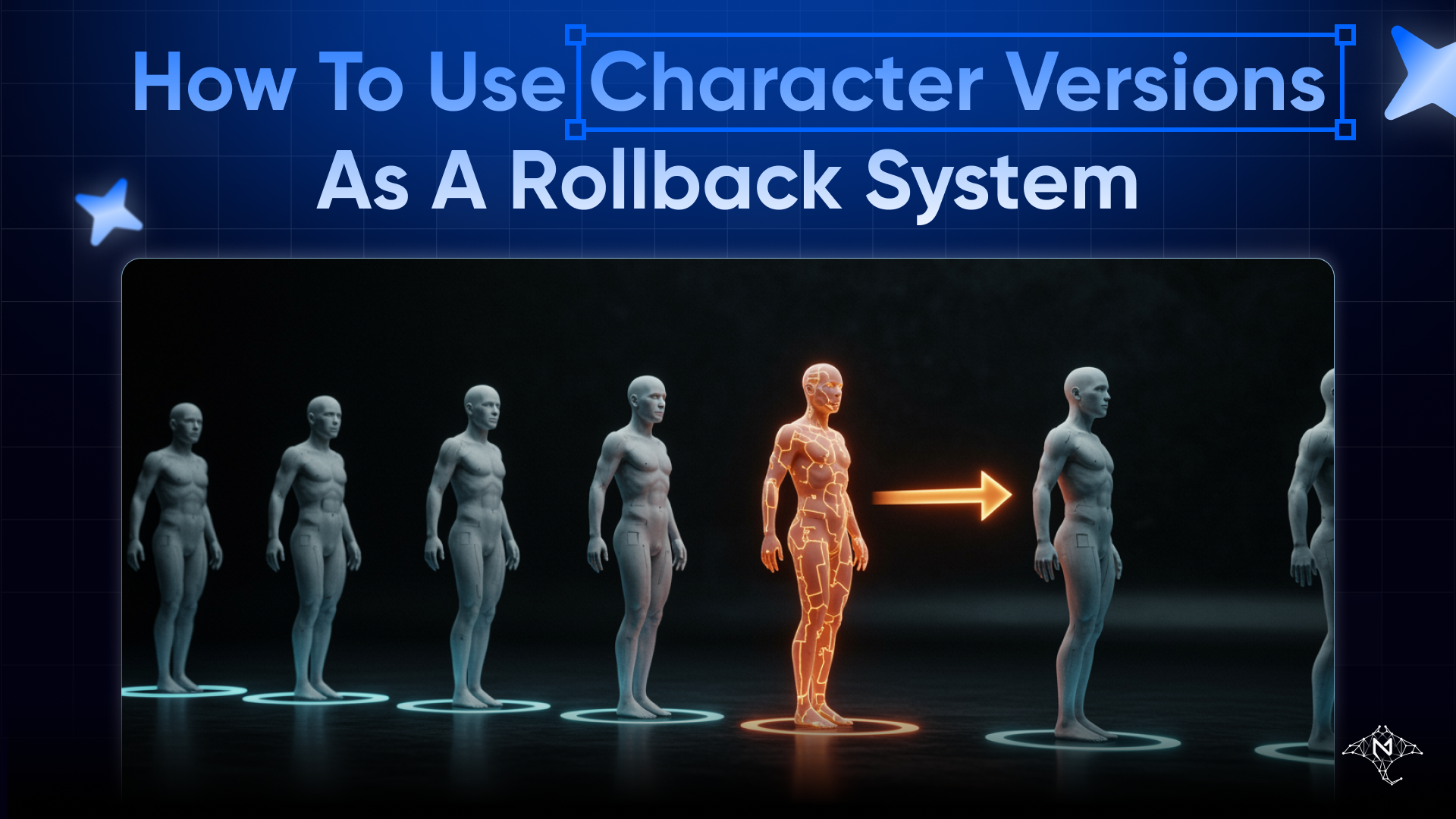
Every meaningful change to a character — a new personality direction, a revised system prompt, a different model — is a bet. Sometimes the bet pays off. Sometimes you load the character, run a test conversation, and the responses feel wrong in ways that are hard to articulate. The voice drifted. The character's judgment changed. Something that was working stopped working.
When that happens, you want to go back.
Character Versions in MegaNova Studio are built exactly for this. Not as an audit log you might occasionally consult — as a live rollback system you can rely on.
How Versions Work
Every time you save changes to a character, Studio records a version snapshot. The snapshot is a complete copy of the character's data at that moment — identity, personality, behavior settings, system prompt, model selection, everything. If you've made 12 saves to a character, you have 12 version snapshots, each reflecting the character exactly as it was when you saved.
Versions are numbered sequentially. Version 1 is created when the character is first saved, labeled "Initial Version." Each save after that increments the version number. The Versions tab shows them sorted from newest to oldest — your most recent version at the top, the original at the bottom.
This structure means rollback is always available and always accurate. You're not restoring from a backup. You're restoring from a precise snapshot that captured every field at the moment of that save.
Finding the Versions Tab
Open any character in the Character Studio. The top navigation shows the main sections: Editor, Arena, Assets, Settings, Video, Lore, Versions.
Click Versions.
You'll see the full version history for this character, listed in reverse chronological order. Each entry shows:
- The version number (v1, v2, v3…)
- The timestamp of when it was saved
- The change notes, if any were added at save time
Version 1 always shows "Initial Version" as the label. Later versions show whatever note was recorded, or are unlabeled if the save didn't include notes.
Reading a Version Before Restoring
Before restoring a version, you can preview it. Click the expand arrow on any version entry to open the preview panel.
The preview shows:
- Core Identity — the character's name and the model it was configured to use at that version
- Personality Preview — the beginning of the system instruction, enough to recognize the character's voice and catch whether this is the version you want
This preview is enough to distinguish between versions without restoring any of them. If you made five changes looking for the right tone and you need to find the one that worked, expand each version in sequence and read the personality preview until you recognize it.
Restoring a Version
When you've identified the version you want to return to, click the Restore button (the circular arrow icon) on that version entry.
Studio will ask you to confirm: "Are you sure you want to restore v{n}? Current changes may be lost."
Confirm, and the character's fields reload with the snapshot data from that version — name, model, system prompt, all configuration. The character is now in the state it was in when that version was saved.
The current version is not deleted. Your version history is preserved. Restoring to v3 when you're on v8 doesn't erase v4 through v8 — it applies the v3 data to the character's current state. If you make a new save after restoring, that creates v9 as a new snapshot reflecting the restored configuration.
Practical Workflows
Experimental editing. When you're about to make significant changes — rewriting the system prompt, switching models, restructuring the personality — save first, explicitly, before starting. That creates a clean restore point. Make your changes. If the result is better, keep it. If not, open Versions and restore the pre-edit snapshot.
Model testing. Different models interpret the same system prompt differently. Testing a character on a new model without saving first means you lose your previous configuration if you want to go back. Save before every model test, note what you're testing in the change note, and roll back if the new model doesn't fit the character.
Gradual drift correction. Characters often drift through iterative editing — each individual change seems reasonable, but after ten saves the character has moved away from what made it work originally. When you notice this, look through your version history. Expand a few entries from several saves ago. Find the last version where the personality preview still sounds right. Restore it, then apply only the changes you actually wanted to keep.
Branching exploration. You can use versions to explore two directions from a single baseline. Save at the baseline, edit toward direction A, save. Restore to the baseline, edit toward direction B, save. Now you have versions representing both directions and can test both in Arena before committing.
Using Change Notes Effectively
Change notes are optional, but they make the version list navigable. Without them, you're looking at timestamps and version numbers. With them, each version entry tells you what changed and why.
Notes don't need to be long. "Rewrote opening behavior for softer tone" is enough to find a specific version three weeks later. "Switched to manta-pro for testing" identifies a model change. "Reverted word choice, previous was too formal" tells you what a version was correcting.
The most useful note pattern: record what you changed, not just that you saved. "Save" as a change note doesn't help you distinguish v7 from v8. "Adjusted conflict avoidance threshold, was too passive" does.
What a Version Snapshot Contains
A version captures the complete character at the time of saving — not just the fields that changed. This means a restore brings back every setting, not just the ones you remember changing.
This completeness matters when you're rolling back from a multi-edit session. If you changed the model, adjusted three behavior sliders, rewrote two sections of the system prompt, and want to undo all of it, a single restore from the right version handles all of it at once. You don't need to remember what each individual change was.
Testing After a Restore
After restoring a version, go to Arena before finishing.
Arena runs conversations against the current character configuration. A few test exchanges will confirm whether the restored version behaves the way you expected — whether the rollback recovered what you were looking for. If it did, you're done. If not, the Versions tab is still there with the full history available.
Restoring a version is reversible. You haven't lost anything. Test, check, and iterate until the character is what you need it to be.
Open your character's Versions tab in the Blueprint Editor →
Stay Connected
💻 Website: Meganova Studio
🎮 Discord: Join our Discord
👽 Reddit: r/MegaNovaAI
🐦 Twitter: @meganovaai