How to Import Character Cards into MegaNova Chat: Bring Your Favorite Personas with You
Building the perfect AI companion takes time. You’ve tweaked their history, perfected their personality, and shared countless stories. Worried that switching to MegaNova Chat means losing that progress? Don't be.
You don't need to copy-paste fields or rebuild from scratch. MegaNova Chat supports Character Card Import, a fast and simple way to bring your existing characters with you.
Here is how to transfer your personas to our system in seconds.
What is a Character Card?
Before we jump into the steps, let’s look at how this magic works.
A character card looks like a regular image file, usually a .png. When you look at it, you just see the character's avatar. However, hidden inside that image file is data.
This file contains all the text information that makes your character unique. It holds their name, personality traits, greeting, and scenario.
Think of it as a digital suitcase. You pick up the image, carry it over to MegaNova Chat, and unpack it. All your character's details are instantly ready to use. This means you do not need to retype a single word.
How to Get Characters from Other Platforms
The first step is retrieving your character from their current platform.
Many modern AI roleplay sites allow you to download these cards. MegaNova Chat is compatible with almost any platform that offers downloadable PNG character cards.
The specific buttons might look different depending on where you are coming from, but the process is usually the same.
Using JannyAI as an Example:
If you are moving a character from a site like JannyAI, the process is straightforward.
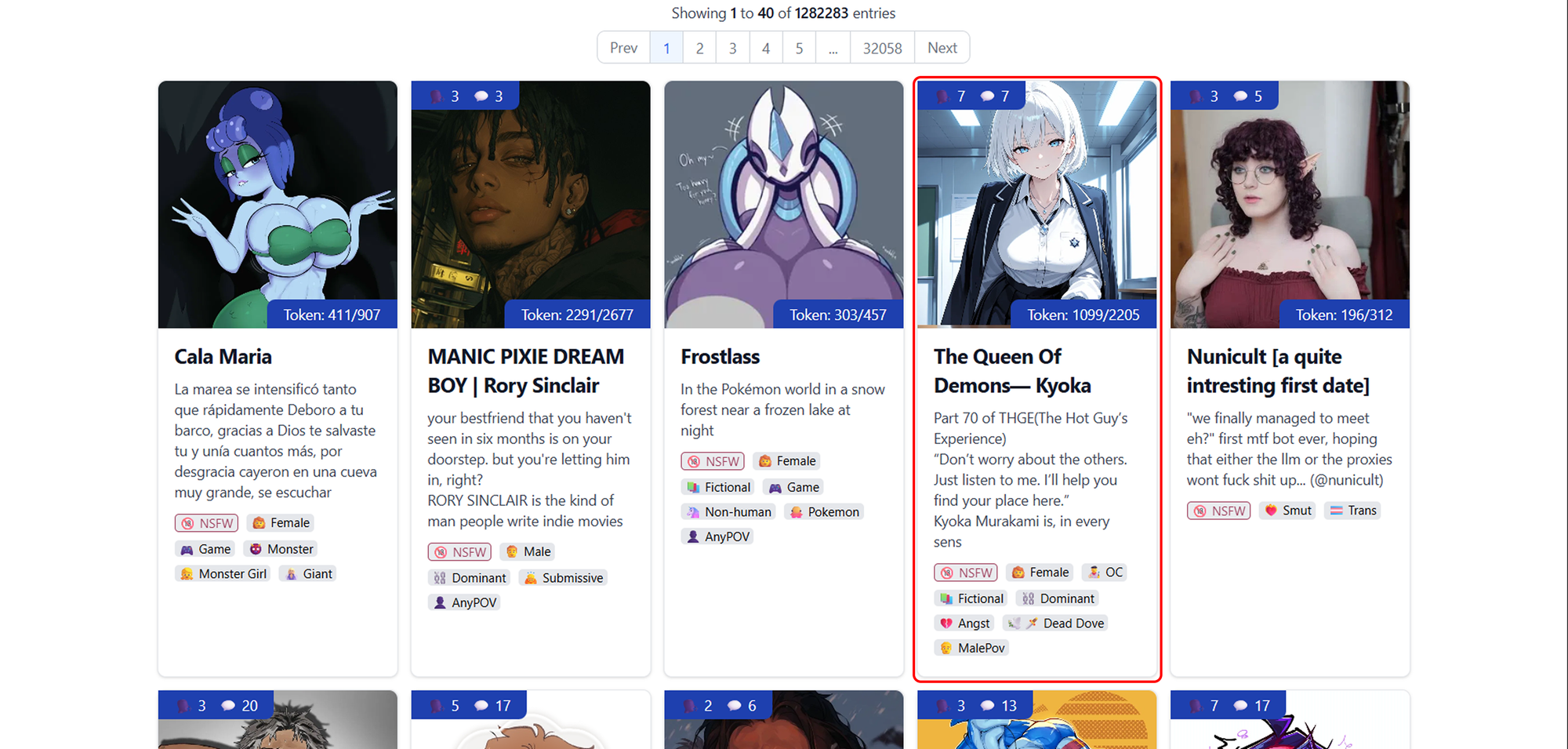
Navigate to the Character: Go to the profile page of the character you want to move.
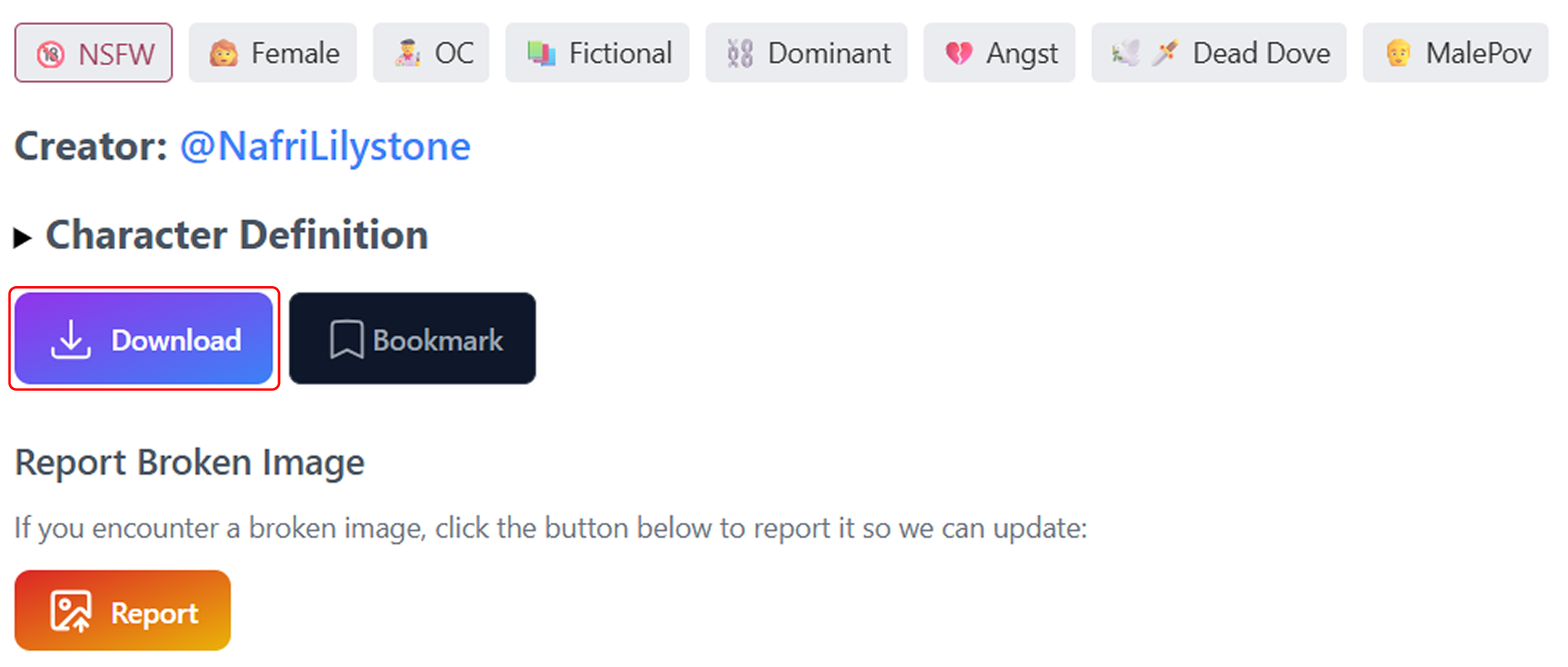
Find the Download Option: Look for a "Download" button or an "Export" option. On JannyAI, you simply click the Download button.
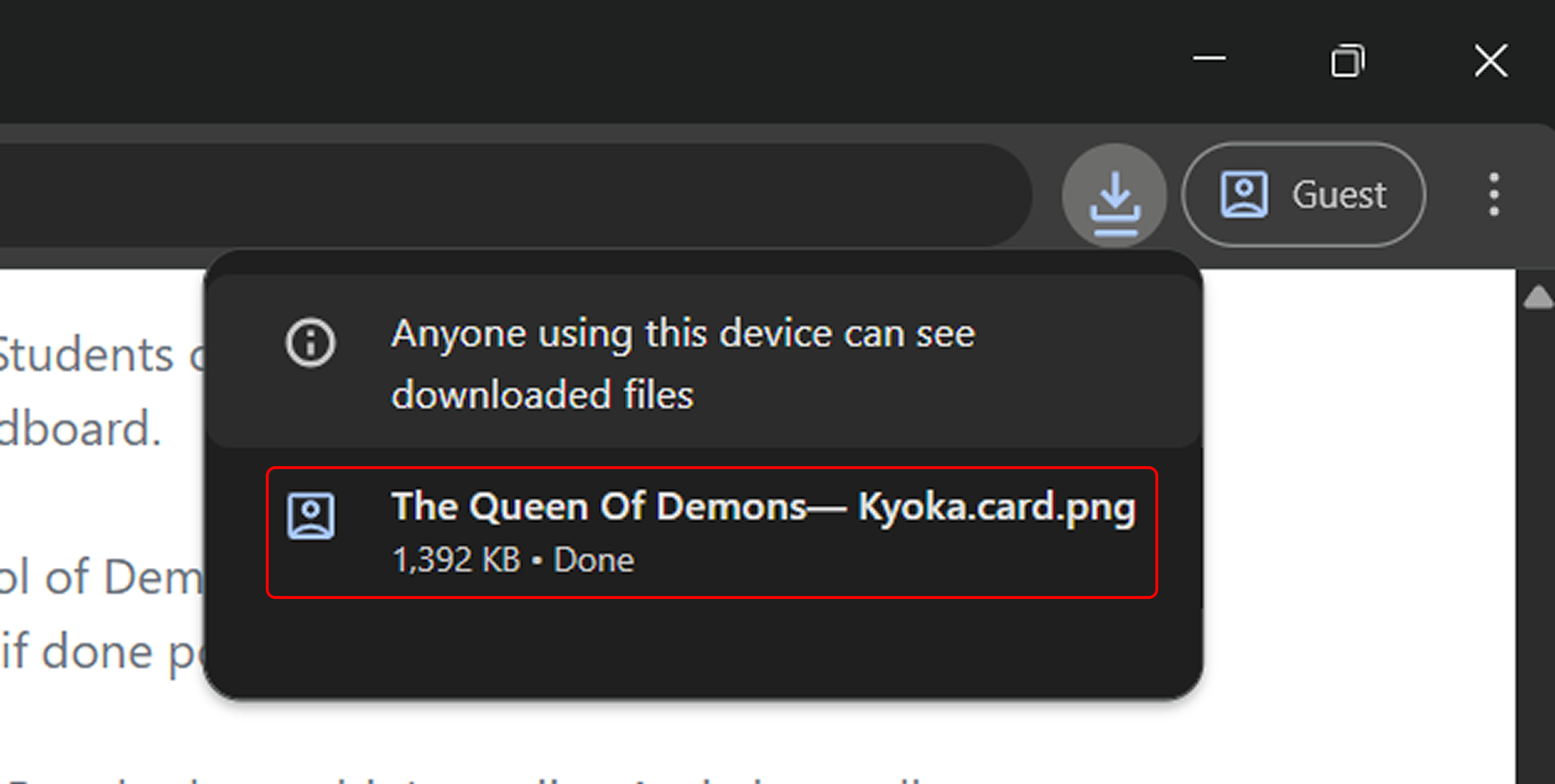
Save the File: This will save a .png file to your computer or phone.
How about other platforms? Let's switch to ChubAI for example.
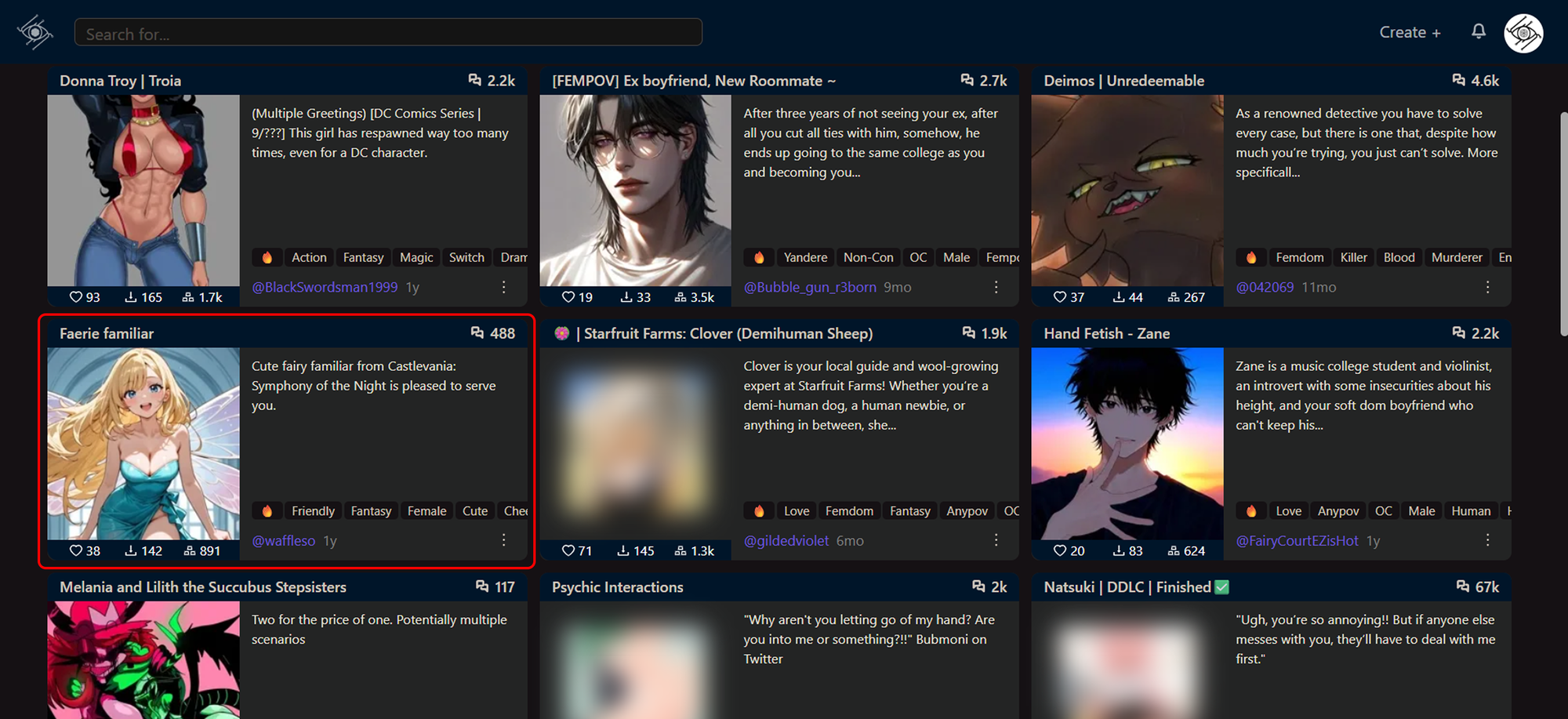
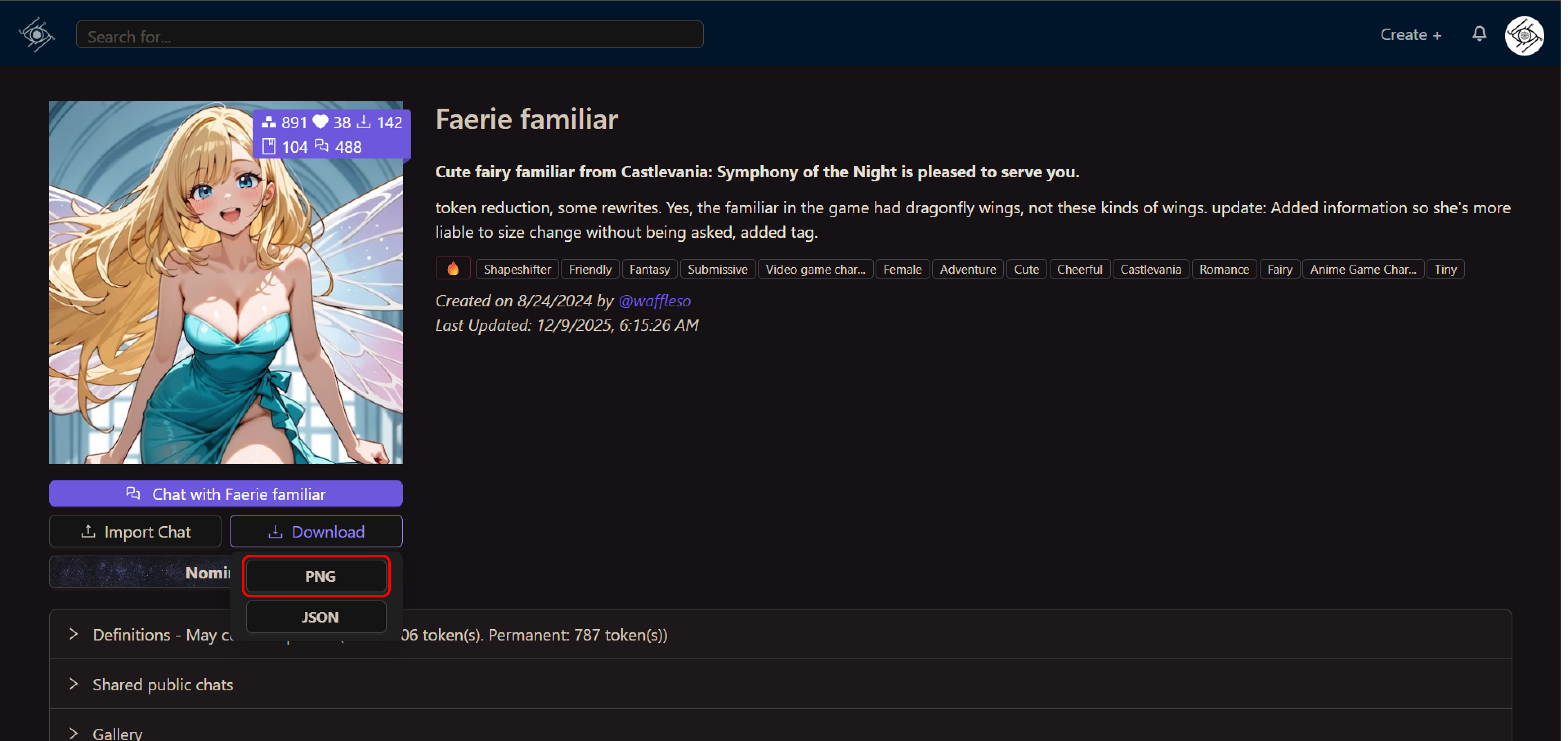
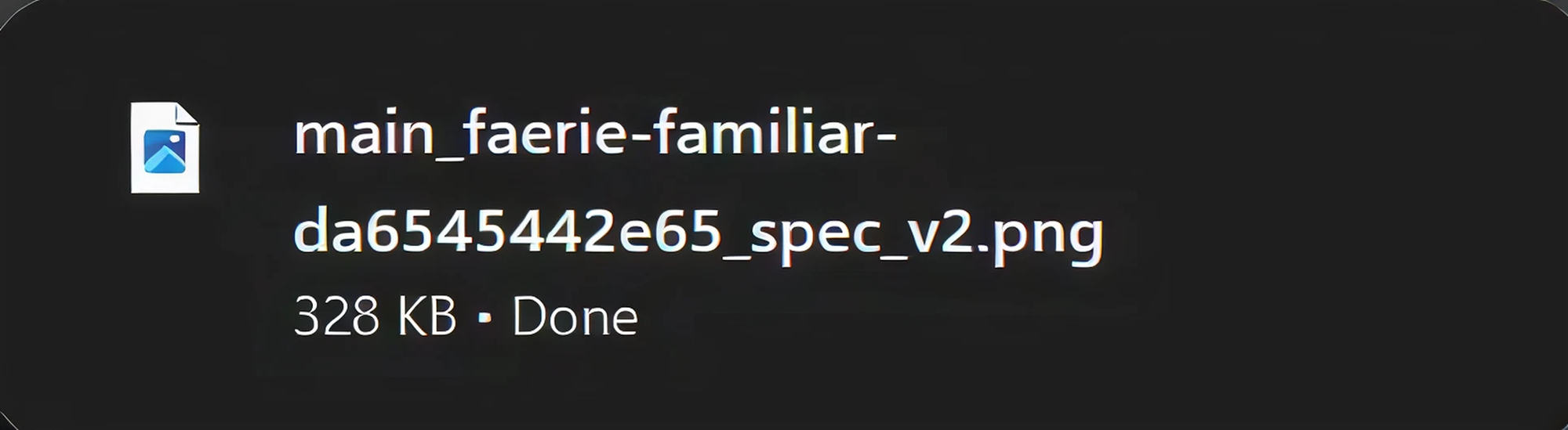
Note: Make sure you save the original file directly. Do not take a screenshot of the avatar. A screenshot is just a picture; it does not contain the hidden data needed for the import to work.
Step-by-Step: Importing to MegaNova Chat
Once you have your .png file, you are ready to bring them into MegaNova Chat. We have made this process incredibly fast.
Follow these simple steps to import your character card:
1. Open the Creation Menu
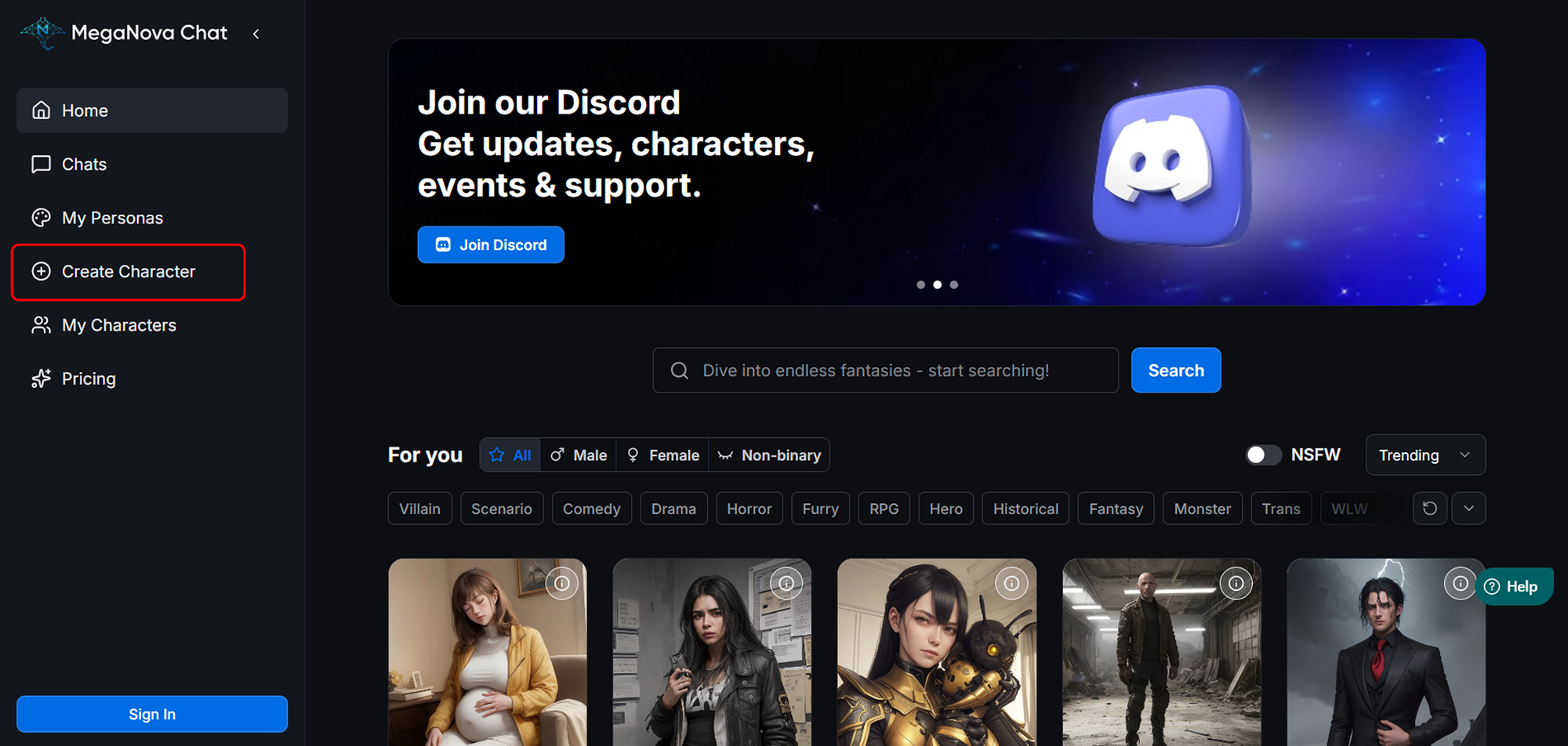
Log in to MegaNova Chat. Look for the "Create Character" button on the left sidebar and click it. This opens the main panel where you usually build a character from scratch.
2. Find the Import Section
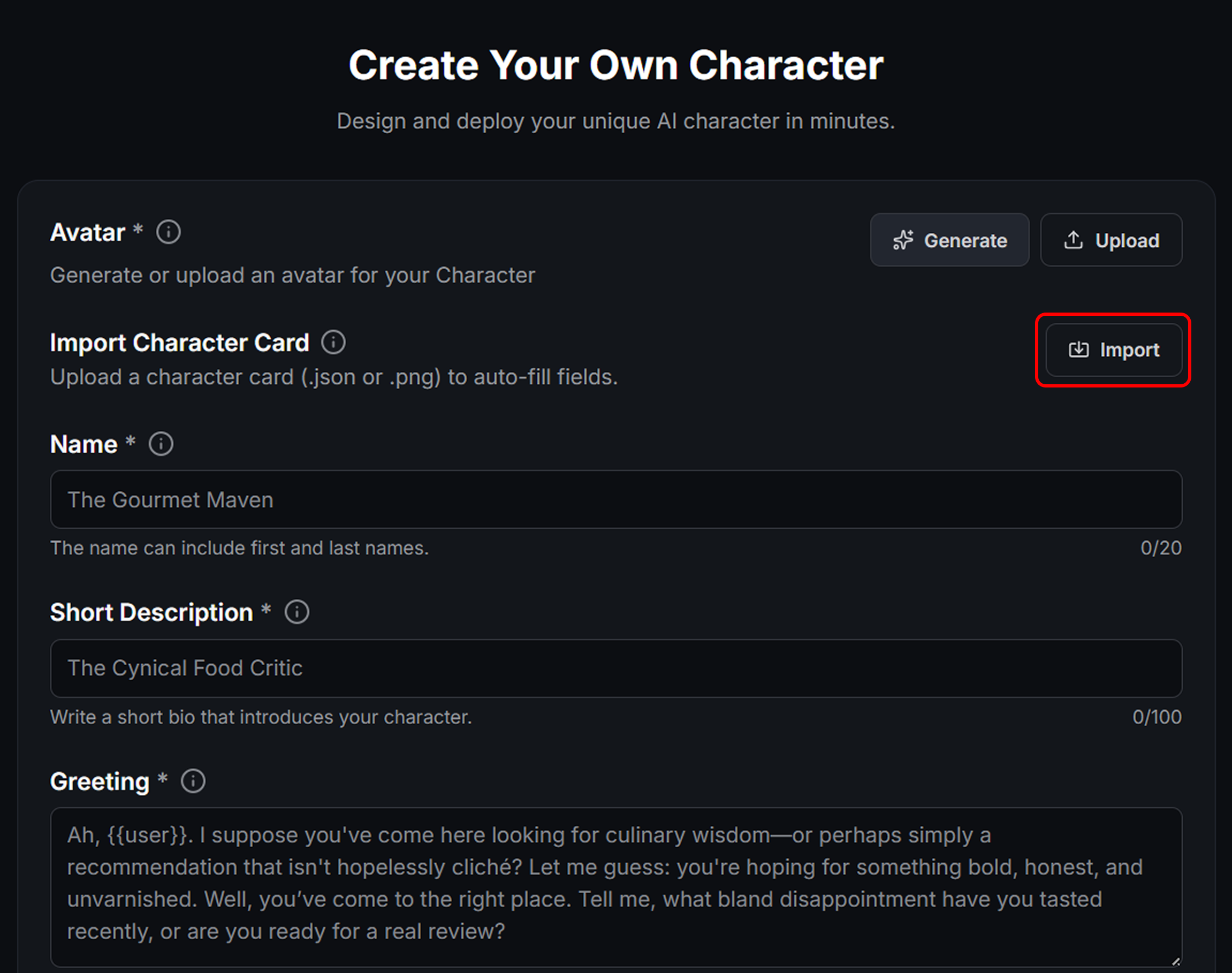
You do not need to fill out the blank fields. Instead, look for the section labeled Import Character Card.
3. Upload Your Card
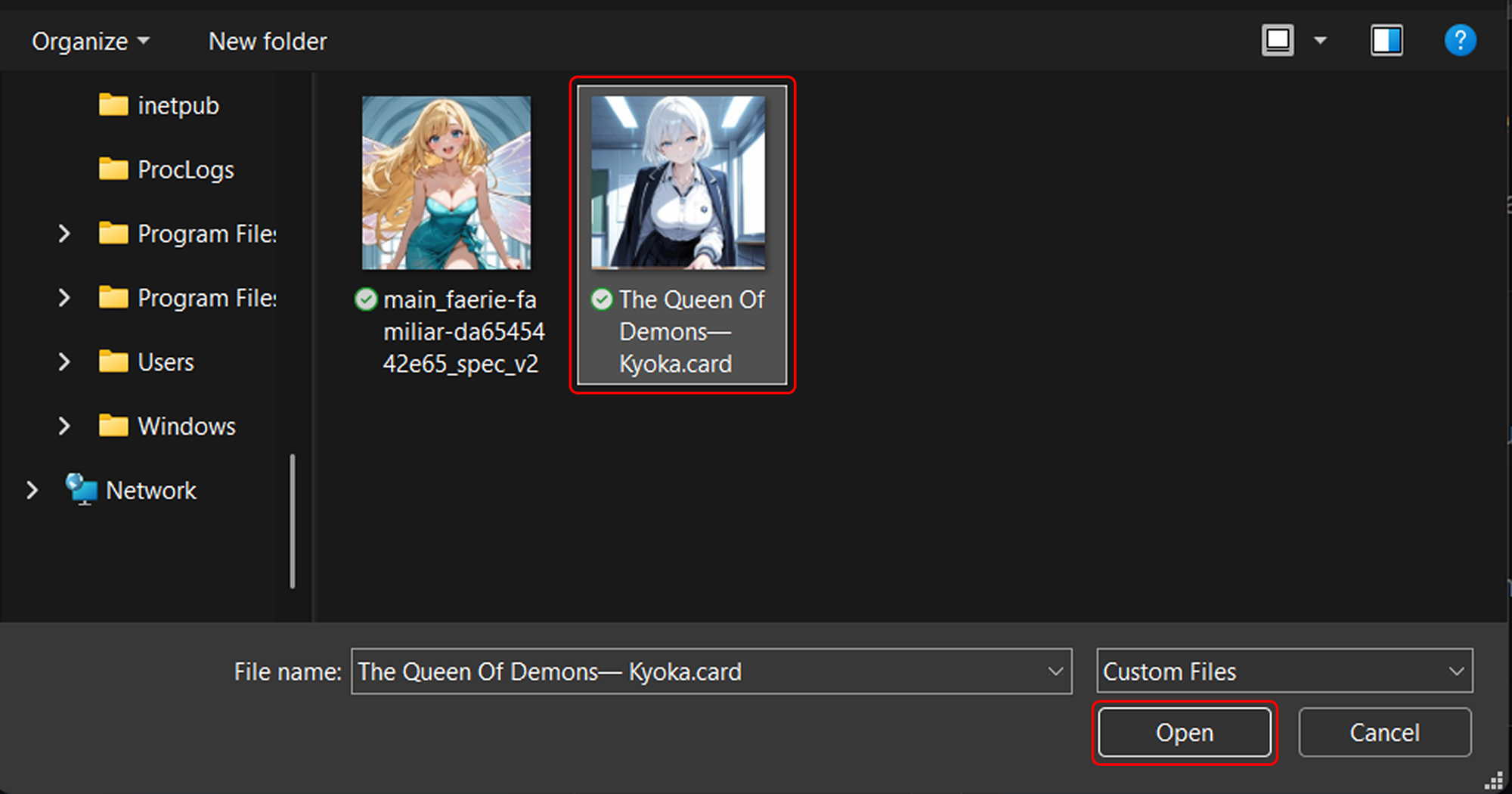
Click the "Import" button. A file browser will pop up. Select the .png character card you downloaded earlier.
4. Watch the Magic Happen
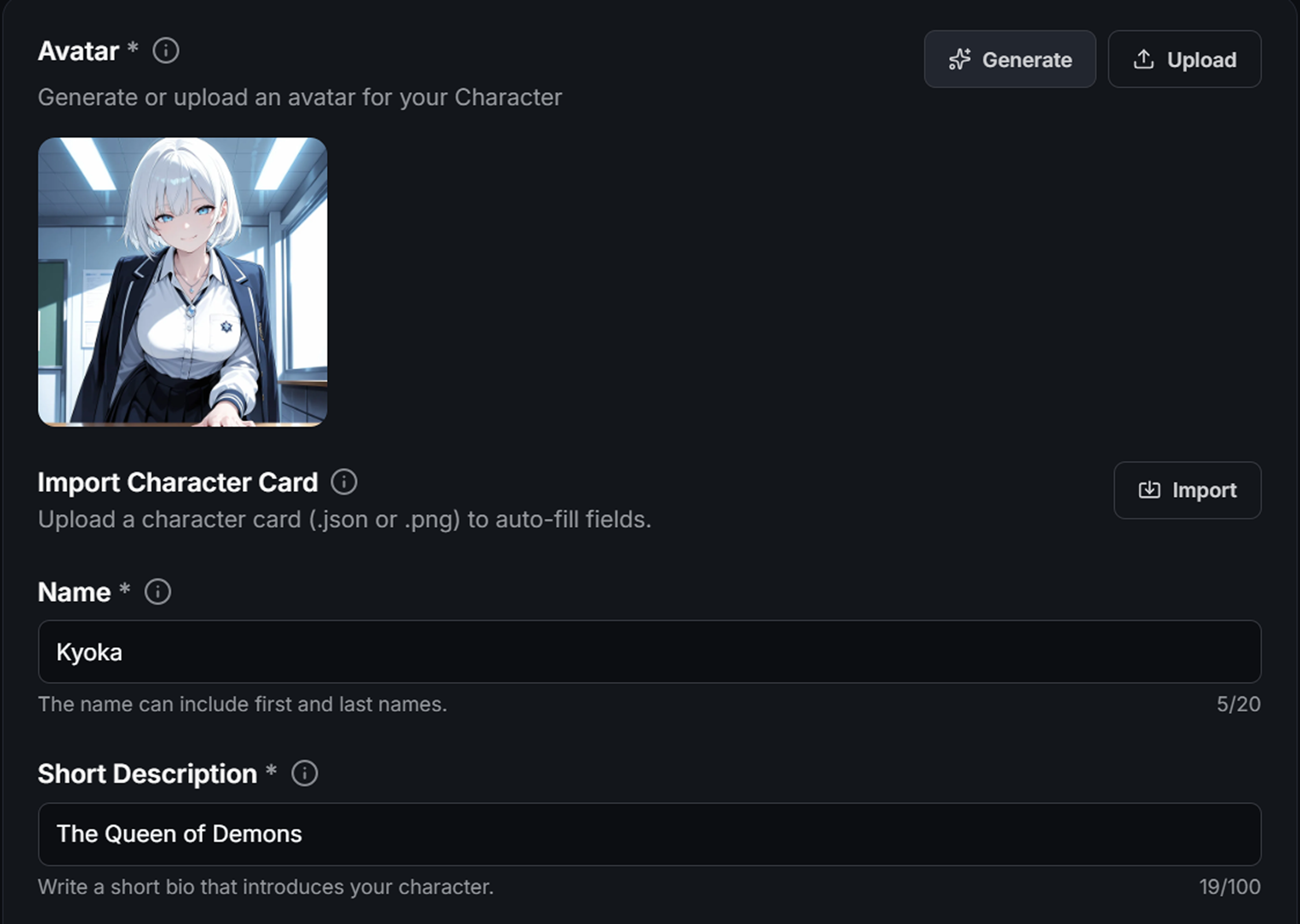
MegaNova Chat will scan the image. It automatically extracts the data and fills in the fields for you. You will see the Name, Character's Personality, Greeting, and Avatar sections populate instantly.
What to Do After the Import
Your character is now in the system, but you should take a moment to review them before you start chatting.
Since different platforms use different formatting, you might want to make small adjustments to ensure they work perfectly with MegaNova Chat.
Check the Tags
Your imported character might not have tags selected yet. Navigate to the Tags section. You can add up to 10 tags to help categorize your character.
This is especially important if you plan to make the character public, as it helps other users find them in search results.
Set the Visibility
By default, you should decide who can see your character.
- Private: Only you can chat with them.
- Unlisted: They are hidden from search, but you can share a link with friends.
- Public: Everyone can see and chat with them.
Review Advanced Settings
Sometimes, imported characters have very complex personality formats. You might want to check the "Character's Personality" field to ensure it looks correct.
MegaNova Chat supports various styles like W++, Boost Style, and Natural Language, so your imported data should work fine. However, a quick read-through never hurts.
Your Characters, Your Freedom
One of the core values at MegaNova Chat is ownership. We believe your characters belong to you.
By making it easy to import character cards, we want to ensure you are never locked into a single platform. You should have the freedom to take your creations wherever you go.
So, go find those old character files sitting in your downloads folder. They are ready to continue the story exactly where you left off.
Bring your favorite personas over to
MegaNova Chat today.
What’s Next?
Sign up and explore now.
🔍 Learn more: Visit our blog and documents for more insights or schedule a demo to optimize your roleplay experience.
📬 Get in touch: Join our Discord community for help or Contact Us.
Stay Connected
💻 Website: meganova.ai
🎮 Discord: Join our Discord
👽 Reddit: r/MegaNovaAI
🐦 Twitter: @meganovaai